How to Send Unpaid Invoice Reminders Automatically (5 Email Templates)
Most late invoices are forgotten, not refused, and most owners send one reminder and then let it slide. Here is a five-email schedule, templates to copy, and four ways to send them without thinking about it.

Send five invoice reminders: 3 days before the due date, on the due date, then at 7, 14 and 30 days late, each a little firmer and each with the invoice number, amount and a payment link. Automate them with your invoicing tool's built-in reminders, Gmail templates, a sheet plus Zapier, or a browser agent such as Astarii, from $29.99 a month.
Chasing an unpaid invoice is a small job that nobody wants. You have to remember who is late, find the invoice, pick a tone that is firm but not rude, and then remember to follow up again a week later. Most owners do the first email and then let it slide, which is exactly when payments slide too.
This guide gives you a reminder schedule, five email templates you can copy, and four ways to send them automatically, cheapest first. The last option, a browser agent, is what we make at Astarii, so it gets the most detail, along with an honest note on when you don't need it. If your invoices arrive by email and you track them in a sheet, the companion guide on getting invoices from Gmail into a Google Sheet sets up the list this post works from. New to agents? Start with the guide to AI agents for small business, or see how scheduled runs work.
The reminder schedule that works
A reminder sequence is five touches, each a little firmer than the last. Spread them out so the customer has time to act, and stop the moment they pay.
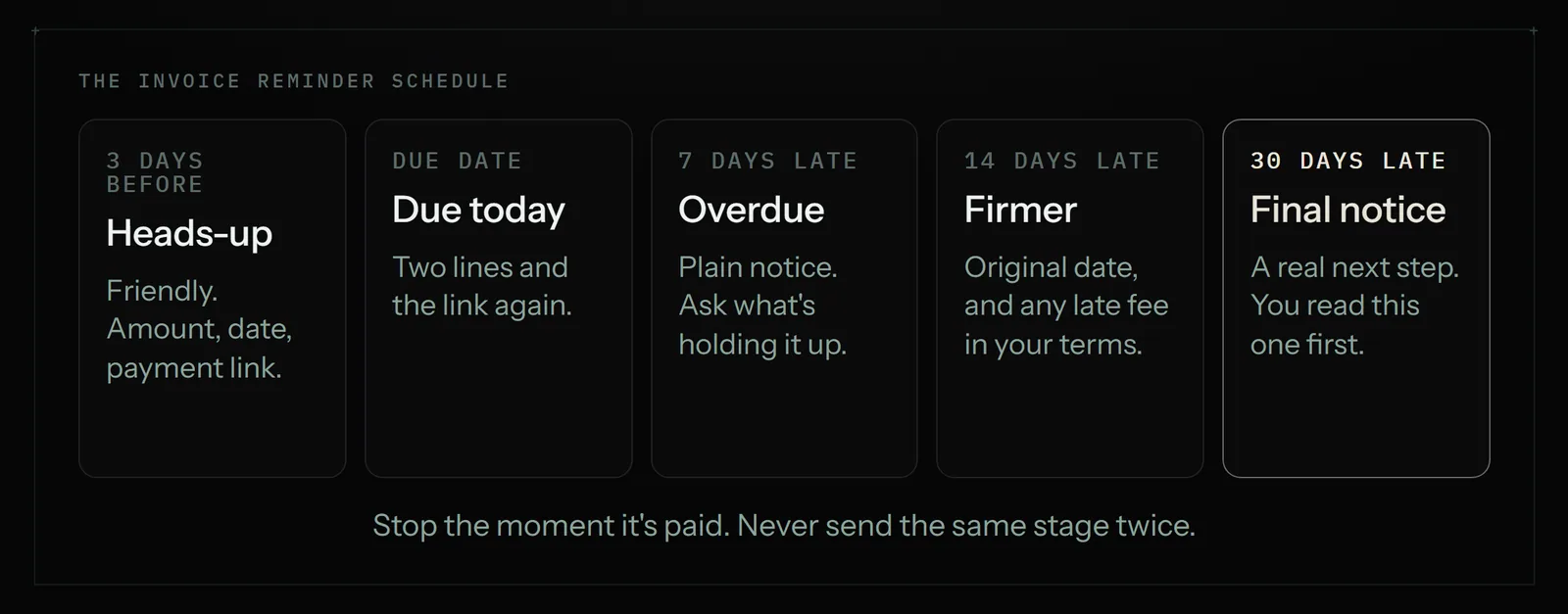
- 3 days before the due date: a friendly heads-up. Most late payments are forgotten, not refused, and this one email catches a lot of them.
- On the due date: a short "due today" note with the payment link.
- 7 days late: a plain overdue notice. Ask whether anything is holding it up.
- 14 days late: firmer. Restate the amount, the original due date and any late fee your terms allow.
- 30 days late: a final notice that says what happens next, such as pausing work. This is the one you should read before it goes.
Stripe's own guidance suggests the first overdue reminder go out 1 to 7 days after the due date, which matches step 3. If your terms are net 15 or net 60 rather than net 30, keep the same shape and stretch or squeeze the gaps.
What every reminder needs
Whatever the tone, every reminder should let the customer pay in under a minute without writing back to ask anything. That means each email carries:
- The invoice number in the subject line, so it is easy to find and hard to ignore.
- The amount and the due date, in the first two lines.
- A payment link or bank details, not "see the attached invoice".
- The invoice itself attached or linked again. People lose the first one.
- One clear ask: pay by a date, or reply if something is wrong.
- Your name, not "Accounts Team", if you are a small business. People pay people.
Keep each email under 120 words. A long reminder reads like a complaint. A short one reads like routine, which is the tone you want until the last step.
5 invoice reminder email templates
Copy these, swap the bracketed parts, and save them as templates in your email or invoicing tool. Each one is written for a small business owner writing to a client they want to keep.
Template 1: Before the due date (friendly)
Subject: Invoice [#1042] due on [Friday 14 November]
Hi [first name],
A quick heads-up that invoice [#1042] for [amount] is due on [date]. You can pay here: [payment link]. I've attached the invoice again in case it's buried.
Thanks, and let me know if you need anything from me.
[Your name]
Template 2: Due today
Subject: Invoice [#1042] is due today
Hi [first name],
Just a reminder that invoice [#1042] for [amount] is due today. The payment link is here: [payment link].
If it's already on its way, thank you, and please ignore this.
[Your name]
Template 3: 7 days overdue
Subject: Overdue: invoice [#1042] ([amount])
Hi [first name],
Invoice [#1042] for [amount] was due on [date] and I haven't seen the payment yet. Is anything holding it up, such as a missing PO number or a question about the work? Happy to sort it out.
You can pay here: [payment link].
[Your name]
Template 4: 14 days overdue (firmer)
Subject: Second reminder: invoice [#1042] is 14 days overdue
Hi [first name],
Invoice [#1042] for [amount] is now 14 days past its due date of [date]. Could you let me know when it will be paid? Our terms include a late fee of [fee] after [30] days, and I'd rather not apply it.
Payment link: [payment link]. The invoice is attached.
[Your name]
Template 5: Final notice
Subject: Final notice: invoice [#1042], [amount] overdue
Hi [first name],
Invoice [#1042] for [amount] is now 30 days overdue, and I haven't had a reply to my earlier emails. If it isn't paid by [date, 7 days from now], I will [pause further work / add the late fee in our terms].
If there's a problem with the invoice, please reply today and we'll fix it. Payment link: [payment link].
[Your name]
Two rules for the last two templates. Only mention a late fee if your contract or invoice terms actually include one. And only state a consequence you will really carry out. An empty threat teaches a client that your deadlines move.
Four ways to send reminders automatically
Once the templates exist, the question is who sends them. Work down this list and stop at the first option that covers how you invoice.
| Method | Best when | Cost | Where it falls short |
|---|---|---|---|
| Your invoicing tool's built-in reminders | Every invoice is sent from QuickBooks, Stripe, Wave, FreshBooks or similar | Included in the plan you pay for | Only covers invoices sent through that tool; fixed template choices |
| Gmail templates plus scheduled send | A handful of invoices a month | Free | You still check who is late and schedule each email by hand |
| A sheet plus Zapier or Apps Script | Invoices tracked in a Google Sheet, and you are happy to set up a flow | Free to about $20 a month | Breaks when the sheet layout changes; can't check a client portal |
| A browser agent such as Astarii | Invoices are spread across a sheet, Gmail and portals, and you want it all handled on a schedule | From $29.99 a month | Overkill if one invoicing tool already does it |
1. Your invoicing tool's built-in reminders
If you send every invoice from accounting software, turn on its reminders before you do anything else. It is the cheapest option and it already knows who has paid.
- QuickBooks Online lets you set up to three automatic reminders, each up to 90 days before or after the due date, under Settings, Account and settings, Sales, Reminders. They only go out for invoices you emailed from QuickBooks.
- Stripe Invoicing can send reminders for unpaid invoices from its billing email settings, with separate options for recurring and one-off invoices.
- Wave sends overdue reminders on its paid Pro plan.
- FreshBooks has automatic late payment reminders with editable text and timing.
Check each tool's current help pages for the exact options, because plans and menus change. Load your templates from above into whichever one you use.
The gap: built-in reminders only know about invoices that tool sent. If some invoices go out as PDFs from Word, some live in a marketplace or a client's supplier portal, and the master list is a spreadsheet, no single tool sees the whole picture.
2. Gmail templates and scheduled send
Gmail can store your five emails as templates (turn on Templates in Settings, See all settings, Advanced, on a computer) and you can schedule any email with the arrow next to Send. That makes each reminder a 30-second job.
It is still a manual system. You have to look at your list, work out who is at which stage and schedule each email yourself. For three or four invoices a month, that is fine. Past that, it is the same job you were trying to get rid of.
3. A Google Sheet plus Zapier or Apps Script
If your invoices live in a sheet with a due date and a "paid" column, a connector tool or a short Apps Script can check it every morning and send the right template from Gmail. Zapier starts at $19.99 a month and Apps Script is free if you can write and maintain a script. The Zapier vs browser agent comparison covers that trade-off in more depth.
This works well until the sheet changes shape, someone types "pd" instead of "Paid", or the payment status really lives in a portal the flow can't open. Then the flow keeps reminding a client who paid last Tuesday, which is the one mistake that annoys clients most.
4. A browser agent that does the whole job
A browser agent works the way you would. Astarii connects to Gmail or Outlook and Google Sheets, and it can also open websites in a real browser and sign in with your saved logins. So one Astari can read your invoice sheet, check a payments dashboard or client portal for what has actually been paid, pick the right template for each overdue invoice, send it from your own email and log the date it went out.
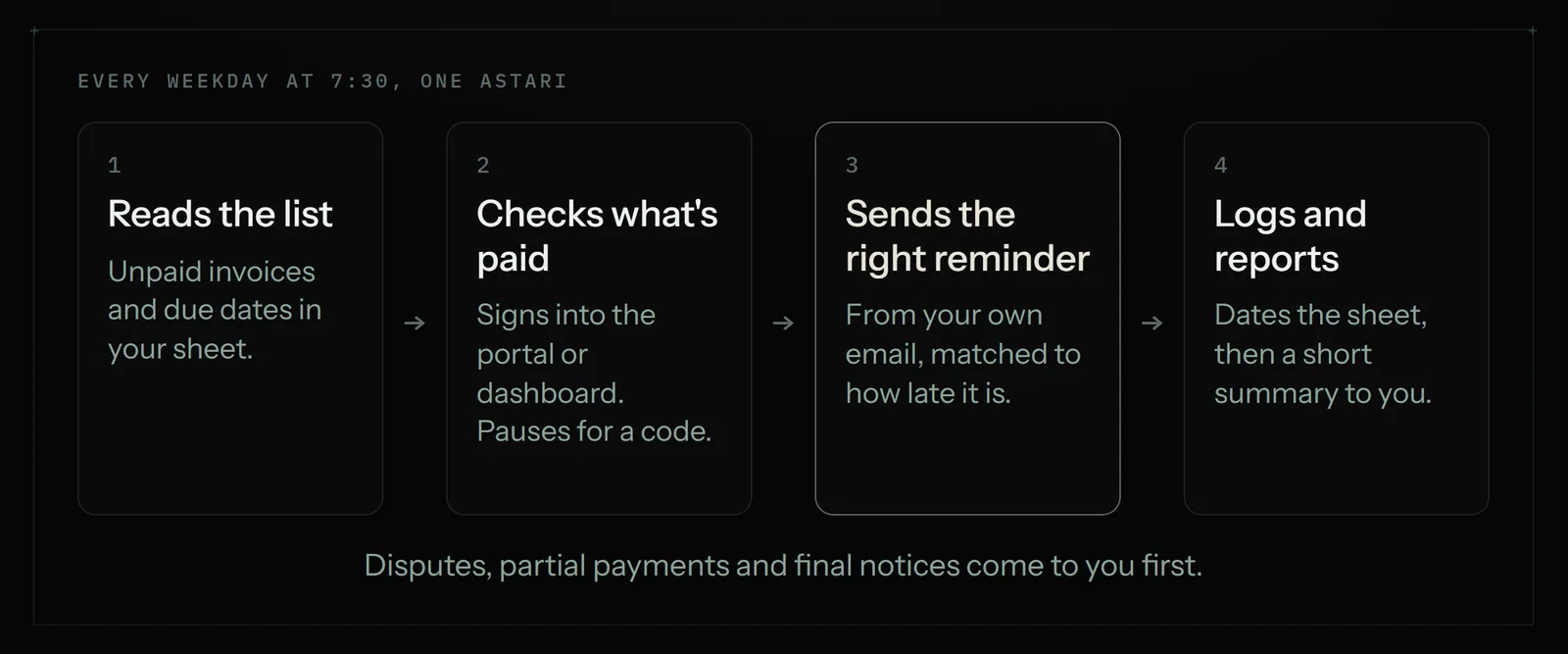
Three things make this safer than a simple flow:
- Task memory. A scheduled Astari never does the same item twice, so a client doesn't get the 7-day reminder two mornings in a row.
- It asks when unsure. An Astari pauses and asks you when something needs a decision, such as a partial payment or a reply that disputes the invoice, then carries on from where it stopped.
- Your passwords stay private. Saved passwords are encrypted in your browser before they are stored and are never shown to the AI. If a site texts a sign-in code, the run pauses for you.
It runs in the cloud on a schedule, such as every weekday at 7:30, so your laptop can be closed.
Setting it up in Astarii, step by step
- Tidy the list. One row per invoice in a Google Sheet: client, email, invoice number, amount, due date, payment link, status, and a "last reminder" column. If your invoices arrive by email, the Gmail-to-Sheets guide builds this sheet for you.
- Paste the five templates into a second tab, one per row, with the day they apply to.
- Connect Gmail or Outlook and Sheets from Connections. If paid status lives on a website, save that login under identities.
- Describe the job in plain English, using one of the instructions further down. See your first Astari for the basics.
- Run it once with sending off. Ask it to email you the list of reminders it would send today, with the template for each. Read it. Fix any wrong statuses in the sheet.
- Schedule it for every weekday at a set time, and let it send. Keep the final notice as "draft it and send it to me" so you read the one email that can cost a relationship.
A worked example: a five-person design studio
A studio sends about 25 invoices a month: most from its accounting tool, a few as PDFs to clients who insist on their own supplier portal. At any time around 6 are overdue.
Before: the owner spent about 20 minutes most Mondays checking the sheet against the bank and the portal, then writing reminders. In practice, the 14-day and 30-day emails often didn't go out at all.
After: the accounting tool sends reminders for its own invoices. An Astari covers the rest. Every weekday at 7:30 it reads the sheet, signs into the supplier portal to check which portal invoices show as paid, sends the right reminder for each overdue one, updates the "last reminder" column, and emails the owner a three-line summary. A typical run takes a few minutes. At around 5 minutes a weekday, that is about 110 cloud minutes a month, well inside the 900 cloud minutes on Pro at $29.99 a month. Minutes are metered on a run's real length, rounded up to the minute.
The same Astari can do more with the sheet once it exists. The weekly reports guide shows how to add "outstanding invoices" to a Monday numbers email.
What to keep for yourself
Automate the routine nudges. Keep these:
- Disputes. If a client says the work is wrong or the amount is off, that is a conversation, not a template.
- Your biggest clients. For the two or three accounts that matter most, a personal call often beats any email.
- Payment plans and write-offs. Agreeing to split a bill or forgive part of it is a money decision.
- Collections and legal steps. Handing a debt to a collection agency or small claims court is yours to decide, after advice where needed.
- Refunds and moving money. An agent should report on payments, not make them.
The honest summary: if every invoice you send goes through one invoicing tool, its built-in reminders are enough and you don't need an agent. An agent earns its keep when your invoices and payment status are spread across a sheet, an inbox and websites, which is common for small businesses that work with bigger clients. For more jobs like this, see 25 AI agent examples for small businesses, or compare plans. There are 3 free runs of up to 15 minutes each, with no card.
Say it to an Astari
These are instructions you can give an Astari, word for word. It does the work in a browser, on a schedule if you want one, and asks you before anything goes live.
Questions
How do I write a polite overdue invoice email?
Put the invoice number in the subject line, state the amount and the original due date in the first two lines, include a payment link, and ask whether anything is holding the payment up. Keep it under 120 words and sign it with your own name.
When should I send a payment reminder email?
A common schedule is 3 days before the due date, on the due date, and then 7, 14 and 30 days after it. Stripe suggests the first overdue reminder go out 1 to 7 days after the due date. Stop the sequence as soon as the invoice is paid.
How many reminders should I send before a final notice?
Three or four. A friendly note before the due date, one on the day, and one or two overdue notices give a client every chance. The final notice at about 30 days late should state a real next step, such as pausing work or a late fee your terms allow.
Can QuickBooks send invoice reminders automatically?
Yes. QuickBooks Online can send up to three automatic reminders, each up to 90 days before or after the due date, set under Settings, Account and settings, Sales. They only go out for invoices emailed from QuickBooks.
How do I send invoice reminders automatically from Gmail?
Gmail can save reminders as templates and schedule individual emails, but you still decide who gets which one. For automatic sending, connect a Google Sheet of invoices to Zapier or Apps Script, or use a browser agent such as Astarii that reads the sheet and sends from your Gmail on a schedule.
Will an automated reminder email a client who already paid?
It can, if the paid status is out of date. Built-in reminders avoid this because the invoicing tool records payments. With a sheet-based setup, keep the status column current, or use an Astari that checks the payments dashboard or client portal before sending.
How much does it cost to automate invoice reminders?
Built-in reminders come with most invoicing tools, and Gmail templates are free. Zapier starts at $19.99 a month. Astarii has 3 free runs of up to 15 minutes each with no card, then plans at $29.99, $49.99 or $99.99 a month, metered by each run's real length.
Should I add a late fee to an overdue invoice reminder?
Only if your contract or invoice terms already include one, and only if you will really apply it. Mention it in the 14-day reminder as something you would rather not use, then apply it in the final notice if the terms allow.
filed under Admin and paperwork