How to Automate Google Sheets Without Code: Formulas, Macros, Connectors or an Agent
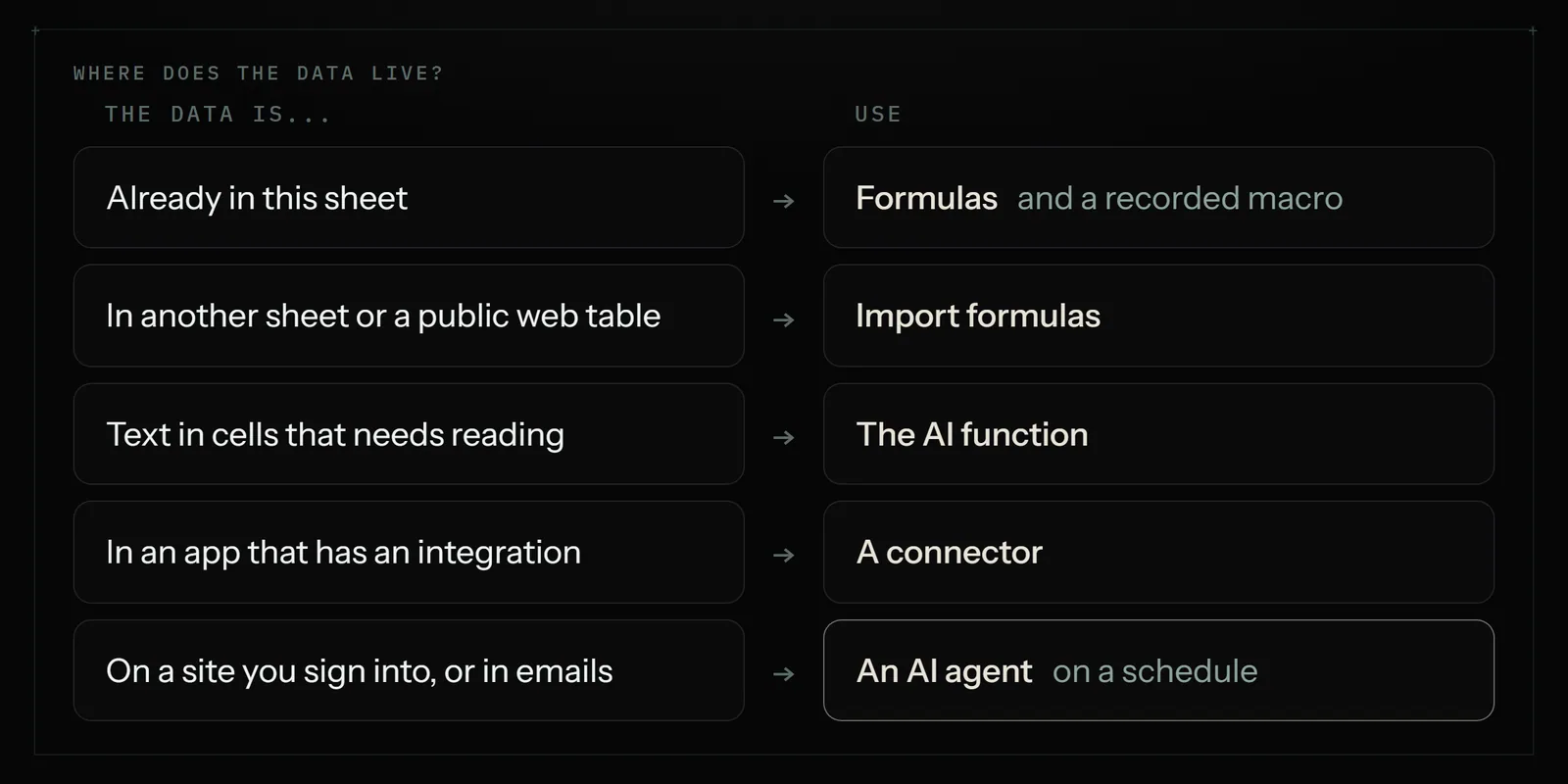
Most of what eats time in a spreadsheet can be automated free, inside Sheets itself. The rest comes down to one question: where does the data live before it reaches a row?

To automate Google Sheets without code, use the lowest rung that fits. Formulas handle calculations, and a recorded macro replays repeated clicks; both are free. The AI function labels text on eligible Google plans. Connectors such as Zapier, from $19.99 a month, add rows from other apps. For sites you sign into, an agent such as Astarii starts at $29.99 a month.
Most advice on automating Google Sheets jumps straight to a script or a paid tool. For a small business that is usually the wrong first move. Sheets already does a lot on its own, free, and the real question is which part of your weekly spreadsheet work is a formula problem, which is a recording problem, and which is a "somebody has to go and fetch this" problem.
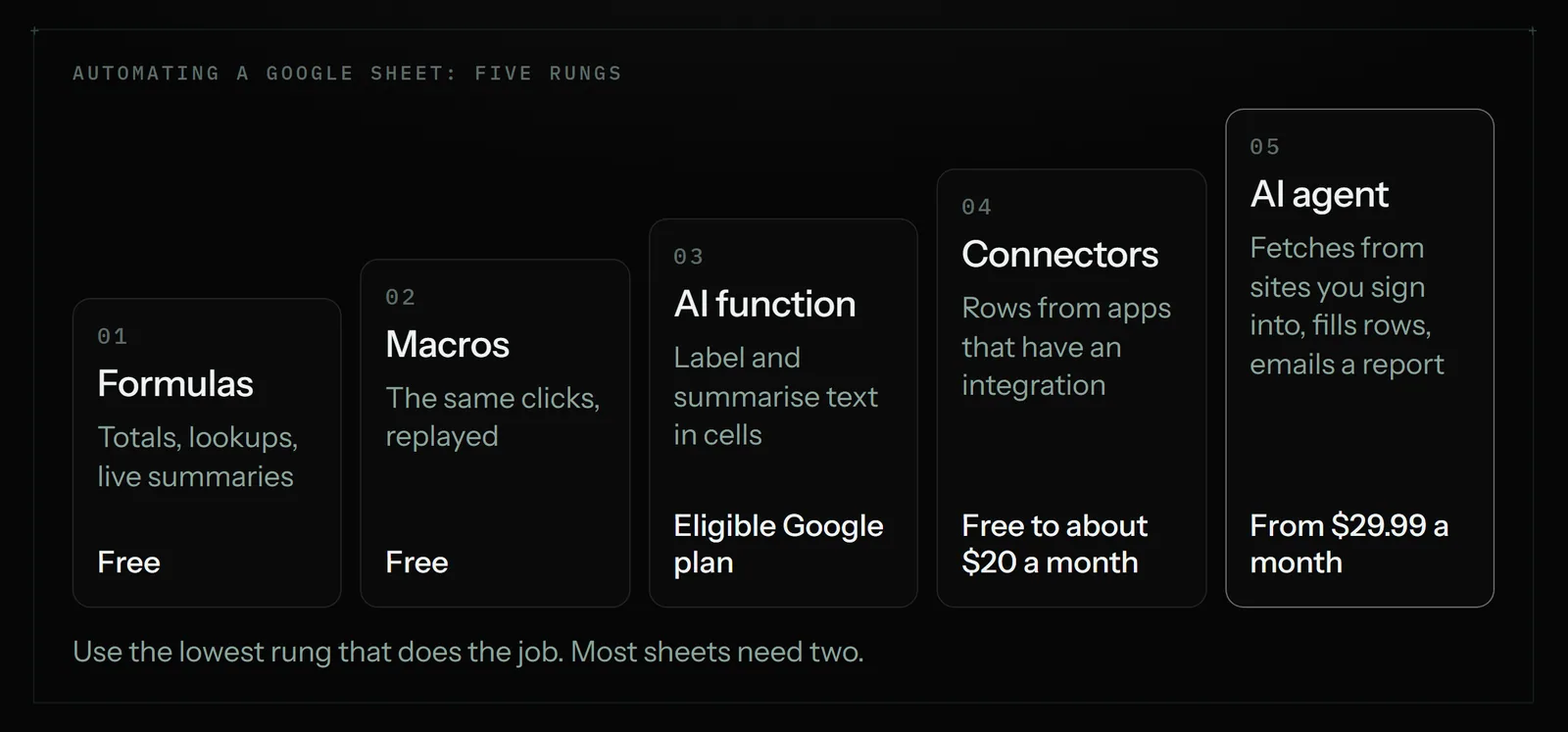
This guide walks up five rungs, cheapest first: formulas, recorded macros, the AI function, connector tools, and an AI agent that works in your sheet through a Google Sheets connection. Each rung says what it automates, what it costs in November 2026 and where it stops. If you want the wider list of jobs a helper can take, start with the guide to AI agents for small business.
The short version
- Calculations and tidy-up inside one sheet: formulas. Free, instant, and they never forget to run.
- The same clicks every week: record a macro. Free, built into the Extensions menu, no code to write.
- Reading and labelling text in rows: the AI function, if your Google plan includes it.
- Rows arriving from another app: a connector such as Zapier or Make, when that app has an integration.
- Data that sits on a website you sign into, or in emails that need reading: a browser agent such as Astarii, from $29.99 a month, on a schedule.
Use the lowest rung that does the job. Most sheets need two of the five, and the first two cost nothing.
Three kinds of spreadsheet work
"Automate my sheet" can mean three different things. Sorting your own list into these saves you from buying a tool for a formula problem.
- Work inside the sheet. Totals, lookups, status labels, colour coding, a summary tab. The data is already there; it needs calculating or arranging.
- Data coming in. Orders, invoices, leads, prices or stock numbers that live somewhere else and have to be typed or pasted into rows.
- Things going out. A reminder email when a row goes overdue, a Friday summary, a form on another website filled from each row.
Formulas and macros cover the first kind almost completely. The second and third kinds are where people lose hours, and where the paid tools earn their place.
The five rungs, side by side
| Rung | What it automates | Cost (Nov 2026) | Runs by itself? | Where it stops |
|---|---|---|---|---|
| 1. Formulas | Calculations, lookups, summaries, pulling ranges from other sheets and public web tables | Free | Yes, on every change | Anything behind a login; sending or changing things outside the sheet |
| 2. Recorded macros | A fixed set of clicks: formatting, sorting, clearing, copying a tab | Free | On a shortcut, or on a timer once you add a trigger | Steps that change from week to week; anything outside Sheets |
| 3. The AI function | Writing, summarising and categorising text in cells | Needs an eligible Google Workspace or Google AI plan | No. You click Generate and Insert | Fetching data from your accounts; doing anything on a schedule |
| 4. Connectors (Zapier, Make) | Adding or updating rows when something happens in another app, and the reverse | Free tiers; Zapier paid from $19.99 a month billed yearly, Make about $9 | Yes, on a trigger | Apps and websites with no integration; steps that need reading |
| 5. An AI agent | Fetching from websites you sign into, reading emails, filling rows, acting on rows, emailing a report | Astarii from $29.99 a month after 3 free runs | Yes, on a schedule | Instant reactions; millions of rows; payments and judgment calls |
There is also a sixth option, Apps Script, which is real code. It gets its own short section below so you know when to ask someone for it.
Rung 1: Formulas that do the work for you
A formula is the best automation there is: free, instant and impossible to forget. Six of them replace most manual upkeep in a small-business sheet.
- ARRAYFORMULA applies one formula to a whole column, so new rows calculate themselves. Put it in row 2 and stop dragging formulas down.
- QUERY builds a live summary on another tab, such as unpaid invoices only, sorted by due date. It updates as the main tab changes.
- XLOOKUP (or VLOOKUP) fills in a price, an address or a category from a reference tab when you type a product code or a customer name.
- IMPORTRANGE pulls a range from another spreadsheet. Google's help page notes you must grant access the first time, and that long chains of sheets importing from each other cause slow updates. Keep it to one hop.
- IMPORTHTML and IMPORTXML pull a table or a value from a public web page. They cannot sign in, so they fail on anything behind a login.
- TODAY with a simple IF turns a due date into a status: "due in 3 days", "overdue 12 days". Add conditional formatting and late rows turn red on their own.
Two more free pieces belong on this rung. A Google Form linked to a sheet adds one row per response, which removes typing for anything a customer or a staff member can fill in. And data validation dropdowns keep a Status column to four agreed words instead of fourteen spellings, which is what makes every later rung reliable.
Where formulas stop: they only see what is in a sheet or on a public page. They cannot open your supplier portal, read an email or send one.
Rung 2: Record a macro for the clicks you repeat
If every Monday you clear last week's entries, re-sort by date, reset the filter and bold the header, that is a macro. You do it once while Sheets records, then replay it.
Google's own steps, from its help page:
- Open the spreadsheet on a computer. Click Extensions, then Macros, then Record macro.
- Choose the reference type at the bottom. Absolute repeats the steps on the exact cells you recorded. Relative repeats them starting from whichever cell you have selected.
- Do the task. Click Save, name the macro and give it a keyboard shortcut if you want one.
- Run it later from Extensions, Macros, then the macro's name.
Recording a macro creates an Apps Script behind the scenes, and you never have to read it. That detail matters for one reason: a script can have a trigger. Google's help page says a macro can be set to run on actions, calendar updates, time intervals or a chosen time and date, by opening the script editor and adding a trigger. That is the one slightly technical step on this rung, and it is a form with dropdowns, not code.
Where macros stop: a macro replays the same steps every time. It cannot decide anything, it does not notice that this week's export has an extra column, and it works only inside Google Sheets.
Rung 3: The AI function for text in rows
Google Sheets has an AI function you type like any other formula. Google's help page gives this example: =AI("Categorize the customer inquiry as a compliment, exchange request, or return request.", C2). It can generate text, summarise, categorise and judge sentiment from the cells you point it at. Either =AI() or =Gemini() works.
Good small-business uses: sorting a column of customer messages into five types, turning long supplier notes into one line each, drafting a first-pass product description from a row of attributes.
Three limits to know before you plan around it:
- It needs the right plan. Google says the feature requires an eligible Google Workspace or Google AI plan. Check your own account before building a sheet on it.
- It is click-driven. You select the cells and click Generate and Insert, and Refresh and Insert to redo them. It is help with a column, not a job that runs at 7:30 while you sleep.
- It reads the sheet, not your accounts. It will not sign into your shop and bring back yesterday's orders.
Treat its output the way you would treat a new assistant's: spot-check twenty rows before trusting two thousand.
Rung 4: Connectors, when another app should fill the sheet
A connector watches one app and writes to another. "When a payment succeeds, add a row." "When a row's Status changes to Ready, send the customer an email." Zapier and Make are the two most small businesses meet first; the n8n vs Zapier vs Make comparison covers the differences in detail.
Prices, from third-party pricing guides read on 19 November 2026: Zapier has a free plan with about 100 tasks a month and a Professional plan from $19.99 a month billed yearly for 750 tasks. Make has a free plan with about 1,000 credits and a Core plan at about $9 a month billed yearly for 10,000 credits. Check each vendor's own pricing page before you buy, because the guides do not all agree.
Connectors are the right rung when three things are true: both apps have an integration, the job is a pure rule with no reading, and you want it to happen within minutes of the trigger. They are fast and they are cheap per run.
Where connectors stop: at the edge of the integration list. A supplier portal, a county licence site, a marketplace dashboard with no public integration, a wholesale price list behind a login: a connector cannot open any of them. They also charge by the step, so a sheet with thousands of rows a month can cost more than the entry price suggests. The Zapier vs browser agent post has a longer checklist.
The code route: Apps Script, and when to ask for it
Apps Script is the programming language built into Google Sheets. It is free and it can do nearly anything inside Google's apps: send emails from rows, build a report tab, create calendar events. If someone on your team writes JavaScript, or you are happy pasting a script from a chatbot and testing it, it is a strong option.
Know its limits before you rely on it. Google's quotas page lists, for a free Gmail account: 6 minutes per script run, 90 minutes a day of total trigger runtime, 20 triggers per user per script, and 100 email recipients a day. Workspace accounts get 6 hours of trigger runtime and 1,500 recipients a day. Google also says these limits can change without notice.
The honest cost of a script is not money. It is that when it breaks in March, somebody has to read code to fix it. If nobody in the business can, stay on the no-code rungs.
Rung 5: An AI agent, when the data is behind a login
The jobs left over after the first four rungs look alike. The numbers you need are on a website with no integration. Or they are in emails that need reading, not just matching. Or each row needs something done on another site. A person could do it in twenty minutes; no formula or connector can do it at all.
That is the job a browser agent takes. Astarii makes AI helpers, each one called an Astari, that work in a real browser: they open websites, sign in with saved logins, read pages, fill in forms, send emails and update spreadsheets, then report what they did. An Astari connects to Google Sheets directly, so it writes rows without clicking around the grid, and to Gmail or Outlook, Docs, Calendar and Drive in the same way.
What that looks like for a sheet:
- You describe the job in plain English, or show it once. There is no flow to build. See your first Astari.
- It runs on a schedule, such as every weekday at 7:30 or every Friday, in the cloud with your laptop closed. See scheduling.
- It remembers what it has done. Task memory means a scheduled Astari never does the same item twice, so Friday's run adds only new invoices and never emails the same lead again.
- It pauses when it should. If a site texts a sign-in code or something needs a decision, it stops, asks you, and carries on from where it stopped.
- Saved passwords stay private. They are encrypted in your browser before they are stored and are never shown to the AI.
Pricing is by run time. After 3 free runs of up to 15 minutes each, with no card, Pro is $29.99 a month for 900 cloud minutes plus 800 browser minutes. As a rough guide, a sheet update that takes 5 minutes each weekday uses about 110 cloud minutes a month. Your run lengths will differ; the first free runs tell you the real figure. Details are on the pricing page.
Ten common Sheets jobs and the cheapest rung that works
| Job | Cheapest rung that works | Why |
|---|---|---|
| Totals, margins and status labels on every new row | 1. Formulas | ARRAYFORMULA in row 2 covers every row you will ever add |
| A live "overdue" tab | 1. Formulas | QUERY plus TODAY; nothing to run |
| Customer or staff submissions | 1. A linked Google Form | Each response becomes a row |
| Monday reset: clear, sort, re-filter, format | 2. Macro | The same clicks every time |
| Labelling 300 customer messages by type | 3. AI function | Reading text is what it is for |
| A row for every online payment | 4. Connector | Payment apps have integrations and you want it within minutes |
| An email when Status becomes Ready | 4. Connector, or Apps Script | A pure rule on a row change |
| This week's invoices from email and supplier portals | 5. Agent | Needs reading, and signing in to fetch some of them. See invoices from Gmail into a sheet |
| Competitor prices each weekday | 1 for public tables, 5 otherwise | IMPORTHTML works until the page needs clicks or a login. See competitor price monitoring |
| Filling a web form from each row | 5. Agent | The form is on someone else's website. See data entry between websites and Sheets |
Get the sheet ready before you automate anything
Every rung above works better on a sheet built for it. Fifteen minutes here prevents most bad rows later.
- One header row, one row per item. No merged cells, no blank spacer rows, no totals in the middle of the data. Put totals on a separate tab.
- Give every row a key. An invoice number, an order number, a URL. A key is how any tool, or any person, tells "new" from "already here".
- Fix the vocabulary. Dropdowns for Status, Category and Owner. Automation that looks for "Paid" will walk straight past "paid - chq".
- Add a Source column and an Added column. Where the row came from and when. When a number looks wrong in June you will want both.
- Keep people and tools in separate columns. If a tool writes columns A to H, keep your notes in J onward so nothing overwrites them.
- Test on a copy. File, then Make a copy. Run the macro, the connector or the agent on the copy for a week before pointing it at the real sheet.
Five mistakes that cause bad rows
- Automating a messy sheet. A tool will copy a mess faster than you can. Clean the structure first.
- No duplicate check. If the job is "add this week's orders" and nothing checks the order number, a re-run doubles your sales. Use a key column, and a tool that remembers what it has processed.
- Chained imports. Sheet C importing from sheet B importing from sheet A is slow and hard to debug, and Google's own guidance says to limit it.
- Paying for a formula. A connector step that multiplies two columns is money spent on something ARRAYFORMULA does free.
- Nobody reads the result. Whatever fills the sheet, have it tell you what it did: rows added, rows skipped, anything odd. Ten seconds reading a summary catches a broken run on day one, not month three.
Where Astarii is not the right pick
- The whole job is inside one sheet. Use formulas and a macro. They are free and instant.
- You need a reaction within seconds. A connector fires on the event. An Astari runs on a schedule or when you ask.
- Both apps have a clean integration and the job is a pure rule. A connector costs less per run.
- Very large data. Hundreds of thousands of rows moved every night belong in a database or a data tool, not in a browser session.
- Money and judgment. Paying invoices, issuing refunds and deciding who gets credit stay with a person. Have the sheet flag them and do those yourself.
Where to go next
Open the sheet that eats the most of your week and sort its work into the three kinds: inside the sheet, coming in, going out. Fix the first kind today with formulas and one recorded macro. For rows that arrive from an app with an integration, try a connector's free tier.
For what is left, the fetching and filling on sites you sign into, describe one job to an Astari and use the three free runs to see how long it takes. Start with your first Astari, connect your Google account under connections, and check pricing once you know your run length. If your week is more than spreadsheets, the 30-minute audit of repetitive tasks finds the rest, and the weekly reports guide shows the same idea applied to dashboards.
Say it to an Astari
These are instructions you can give an Astari, word for word. It does the work in a browser, on a schedule if you want one, and asks you before anything goes live.
Questions
Can you automate Google Sheets without coding?
Yes. Formulas such as ARRAYFORMULA and QUERY keep a sheet calculating on its own, and the macro recorder under Extensions, then Macros, replays clicks you repeat. Connectors and AI agents bring data in from other apps and websites. None of these needs you to write code.
How do I record a macro in Google Sheets?
Open the spreadsheet on a computer, click Extensions, then Macros, then Record macro. Choose absolute or relative references, do the task, click Save and name it. Run it from the same menu or with the keyboard shortcut you set. Google's help page lists the same steps.
Can a Google Sheets macro run on a schedule?
Yes. Recording a macro creates an Apps Script, and Google's help page says you can open the script editor and add a trigger so it runs at time intervals or at a chosen time and date. You pick the options from a form; you do not write code.
Is Google Sheets automation free?
Formulas, linked Google Forms, macros and Apps Script are free. The AI function needs an eligible Google Workspace or Google AI plan. Connectors have free tiers, with Zapier paid plans from $19.99 a month billed yearly according to pricing guides read in November 2026. Astarii starts at $29.99 a month after 3 free runs.
Can AI automate Google Sheets?
In two ways. The AI function inside Sheets writes, summarises and categorises text in cells when you click Generate and Insert. An AI agent such as Astarii works from outside: it fetches data from websites and emails, writes the rows on a schedule and reports back.
How do I pull data from a website into Google Sheets automatically?
For a public table, use the free IMPORTHTML or IMPORTXML formulas. For an app with an integration, use a connector such as Zapier or Make. For a site behind a login, or one you have to click through, a browser agent such as Astarii signs in and copies only the new rows.
What are the limits of Apps Script?
Google's quotas page lists 6 minutes per script run, 20 triggers per user per script, and for free Gmail accounts 90 minutes of trigger runtime and 100 email recipients a day. Workspace accounts get 6 hours and 1,500 recipients. Google says limits can change without notice.
When should I use Zapier and when an AI agent for Google Sheets?
Use Zapier or Make when both apps have an integration, the job is a pure rule and you want it within minutes. Use an agent when the data sits on a website with no integration, needs reading, or the job spans several sites. Many small businesses use both.
- Google Docs Editors Help: Automate tasks in Google Sheets (macros)
- Google Docs Editors Help: Use the AI function in Google Sheets
- Google Docs Editors Help: IMPORTRANGE
- Google for Developers: Quotas for Google Services (Apps Script)
- Zapier blog: Zapier pricing
- Toolradar: Zapier pricing in 2026
- Jetadmin: Make.com pricing in 2026
filed under Admin and paperwork